
We craft compelling user experiences that accelerate growth
A highly focused digital consultancy designing, building and managing user-centred websites, applications and digital campaigns for UK and international clients.
From websites to web apps, we design beautifully simple, engaging experiences
Integrating powerful solutions using best-of-breed platforms, with the latest innovations in tech and AI to rapidly develop and deploy complete solutions.
UX, UI & Web Design
User-centred design with a deep appreciation for experience and engaging aesthetics. From UX research and wireframing through to high-fidelity prototyping and usability testing.
Learn more →Web / Front-end Development
High performing websites require clean, efficient, standards-based code. With over 20 years of front-end experience we build sites that look great, load fast, and are loved by search engines.
Learn more →Graphic Design & Brand Assets
Distinctive brand identities, logo design, and visual assets that communicate who you are. From brand guidelines and print collateral to digital graphics and social media templates.
Learn more →Digital Marketing & Content Creation
Reaching the right audience with the right message. PPC management, social media strategy, content creation, and copywriting that builds authority and drives engagement.
Learn more →SEO
Getting found online starts with solid technical foundations and smart strategy. In-depth SEO audits, keyword research, on-page optimisation, and ongoing performance monitoring.
Learn more →AI Search Optimisation (AEO)
Optimising your content for AI-powered search engines and digital assistants. We ensure your brand surfaces accurately in AI overviews, chatbots, and answer engines.
Learn more →eCommerce
Shopify & Shopwired
Designing and deploying ecommerce stores on Shopify and Shopwired. From theme customisation and product setup to payment integration and marketplace management.
Learn more →Marketing Automation & Email Campaigns
Automated workflows, drip campaigns, and targeted email marketing that nurture leads and drive conversions. We connect your CRM, analytics, and messaging into one seamless system.
Learn more →Digital Transformation
Modernising legacy systems and streamlining processes with smart digital strategies. We help organisations adopt new technologies, automate workflows, and build a digital-first culture.
Learn more →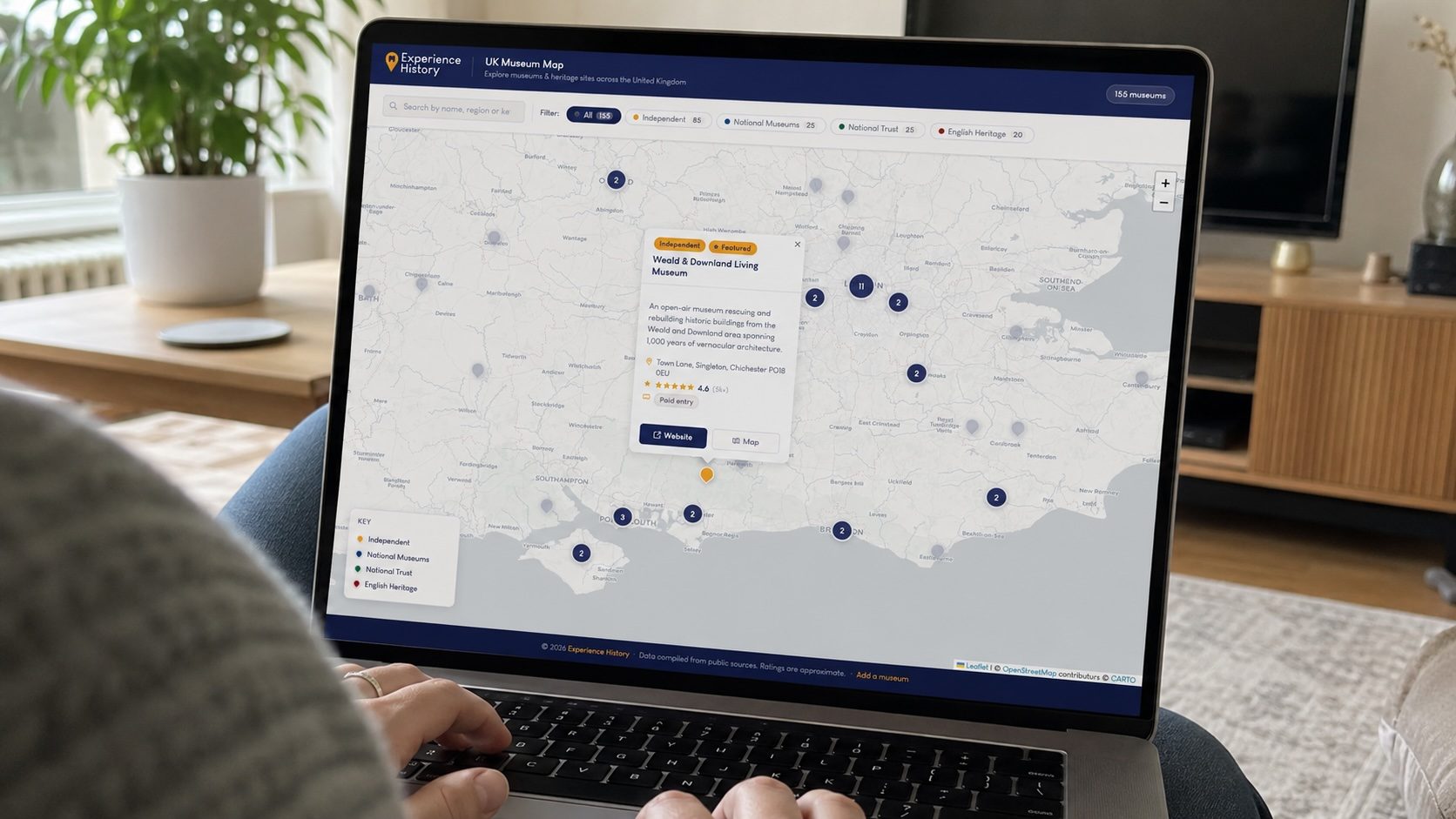


What our clients say
News, insight and opinion
Our thoughts on all things design, UX, and digital marketing.

Three of the World's Top CMS Platforms Hacked in One Week
WordPress, Ghost and Drupal all faced critical vulnerabilities in one week. Why CMS complexity creates risk and how static sites offer a safer alternative.
Read Article →
Why You Still Need a Designer in the Age of AI
AI can generate layouts, write copy and build prototypes in minutes. But design is more than output — it is judgment, empathy and strategy.
Read Article →
How to Choose the Best Shopify Theme in 2026 (Free & Paid)
A comprehensive guide to selecting the right Shopify theme for your ecommerce store, covering performance, features, and design.
Read Article →Ready to grow your digital presence?
Let's talk about how we can help you reach your audience and accelerate your business.
Get In Touch →